Augment
Augmentation turns a few labelled areas into many training patches.
AI Lab's augmenter does more than the one built into most trainers. It has over ten options: flips, 90° rotations, crops sized to your objects, brightness and contrast, colour jitter, gamma and normalization jitter. Turn each on or off, and tune it, in the Augment tab.
Why AI Lab augments explicitly
- AI Lab augments before training and saves the patches to disk.
- A handful of label boxes become hundreds of patches.
- You can look at exactly what training will see.
Some trainers also augment during training. That is fine: the patches are augmented twice. Built-in augmentation varies from trainer to trainer. Some is simple, some is elaborate and slow, and it is harder to inspect.
Steps
- Save Project first. Augmentation reads the saved labels.
- Augment tab:
- Patch Mode:
from_label_boxes. - Augmenter:
AlbumentationsAugmenter. - Pick the transforms: flips, rotate 90, random sized crop, brightness and contrast.
- Patch Size (XY): the size training reads. Linked to the Train tab.
- Number of Patches.
- Patch Mode:
- Perform Augmentations.
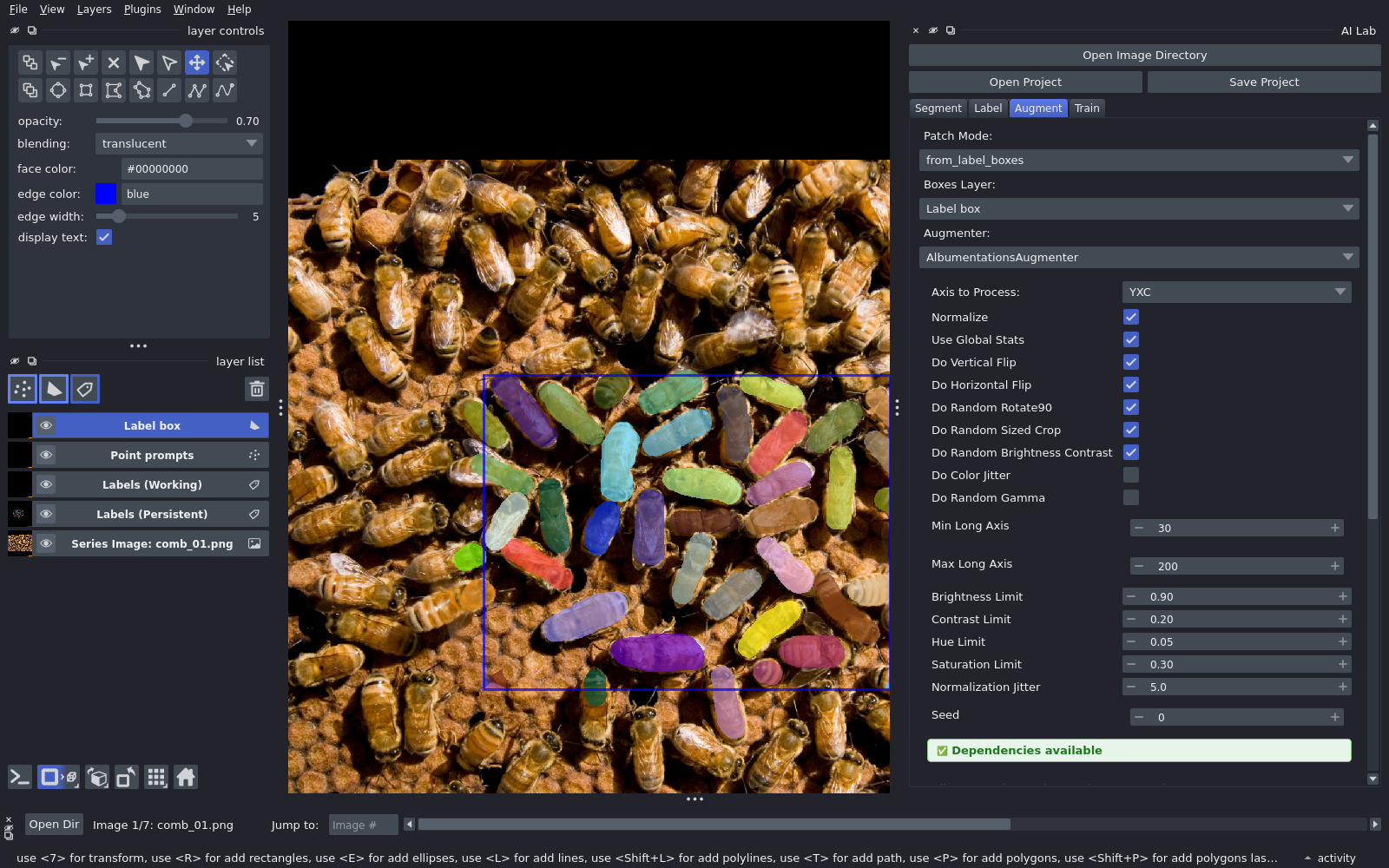
Delete Augmentations clears the old patches before a new run.
Check the patches
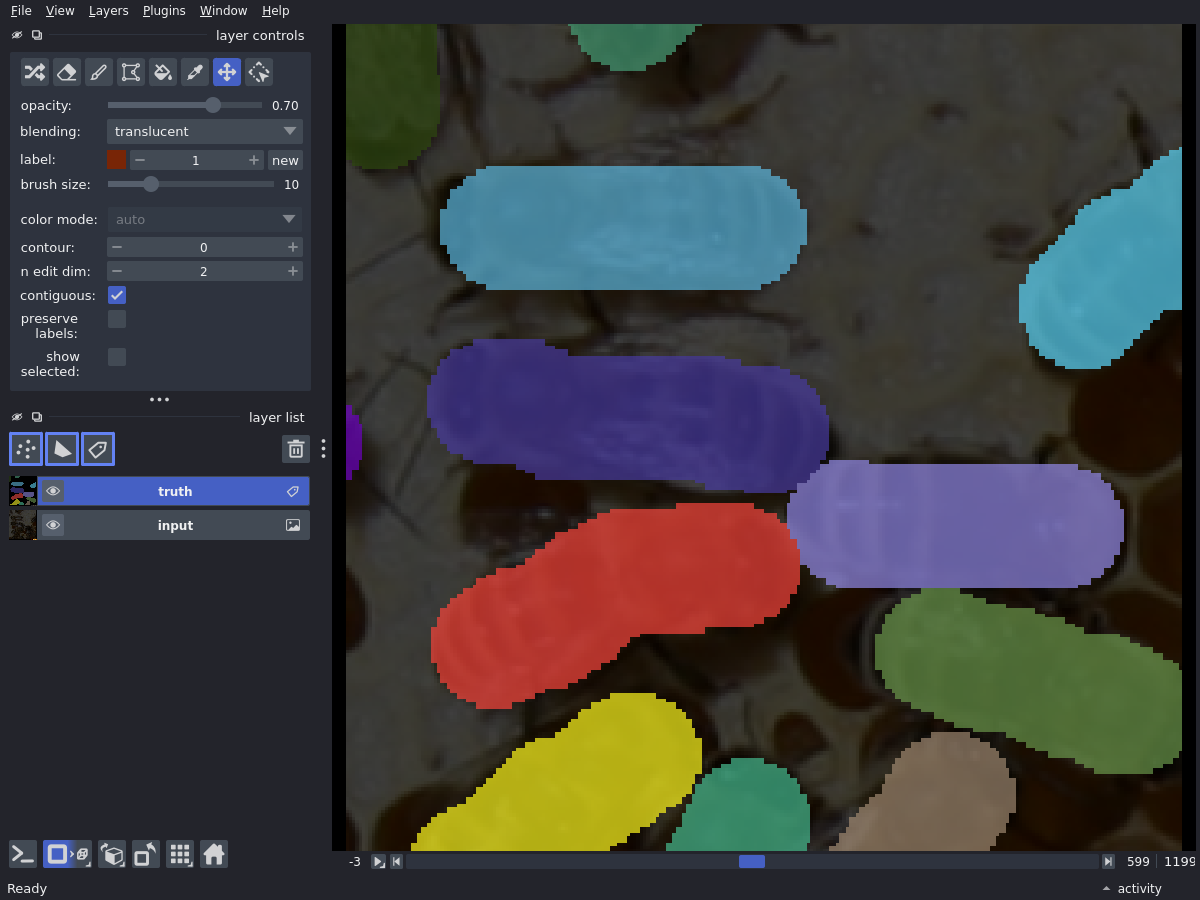
Show Patches opens them in a second napari viewer. Drag the slider to step through them.
Or open the project folder in a file browser, under
patches/patches_axis_yxc/: input0/ holds the images, ground_truth0/ the
labels.
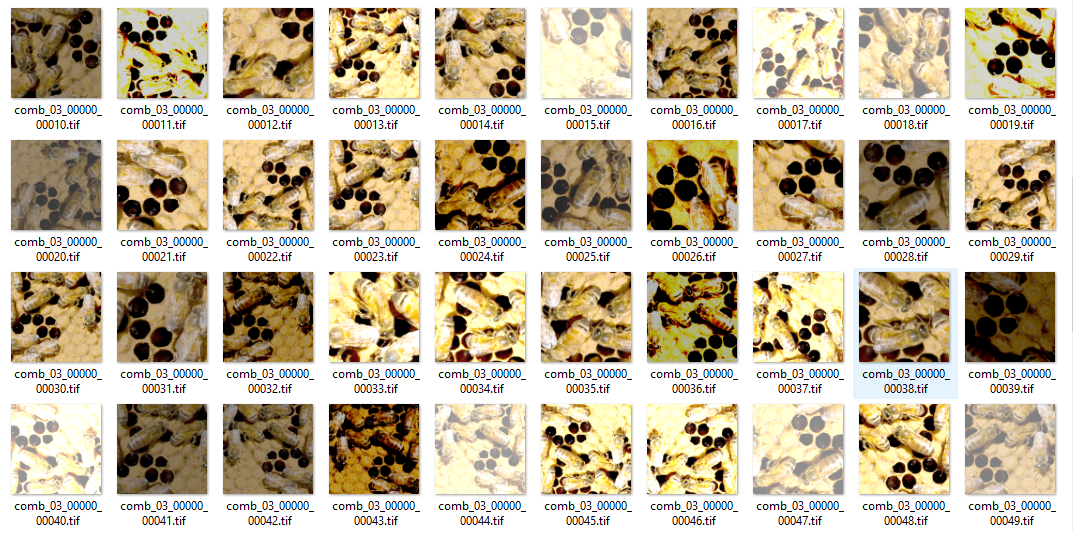
comb_03_00000_00010.tif is image comb_03, label box 00000, patch 00010.